Moderation System & Escalations
The moderation panel helps Conveners monitor feedback consistency and manage student appeals.
Mentoring & Moderation Workflow
If you have connected a junior staff member to a mentor in the Staff Settings (see Staff Management and Roles Quickstart guide) random sample submission feedback provided by that TA automatically appears in the mentor’s Moderation Panel.
Step-by-step instructions
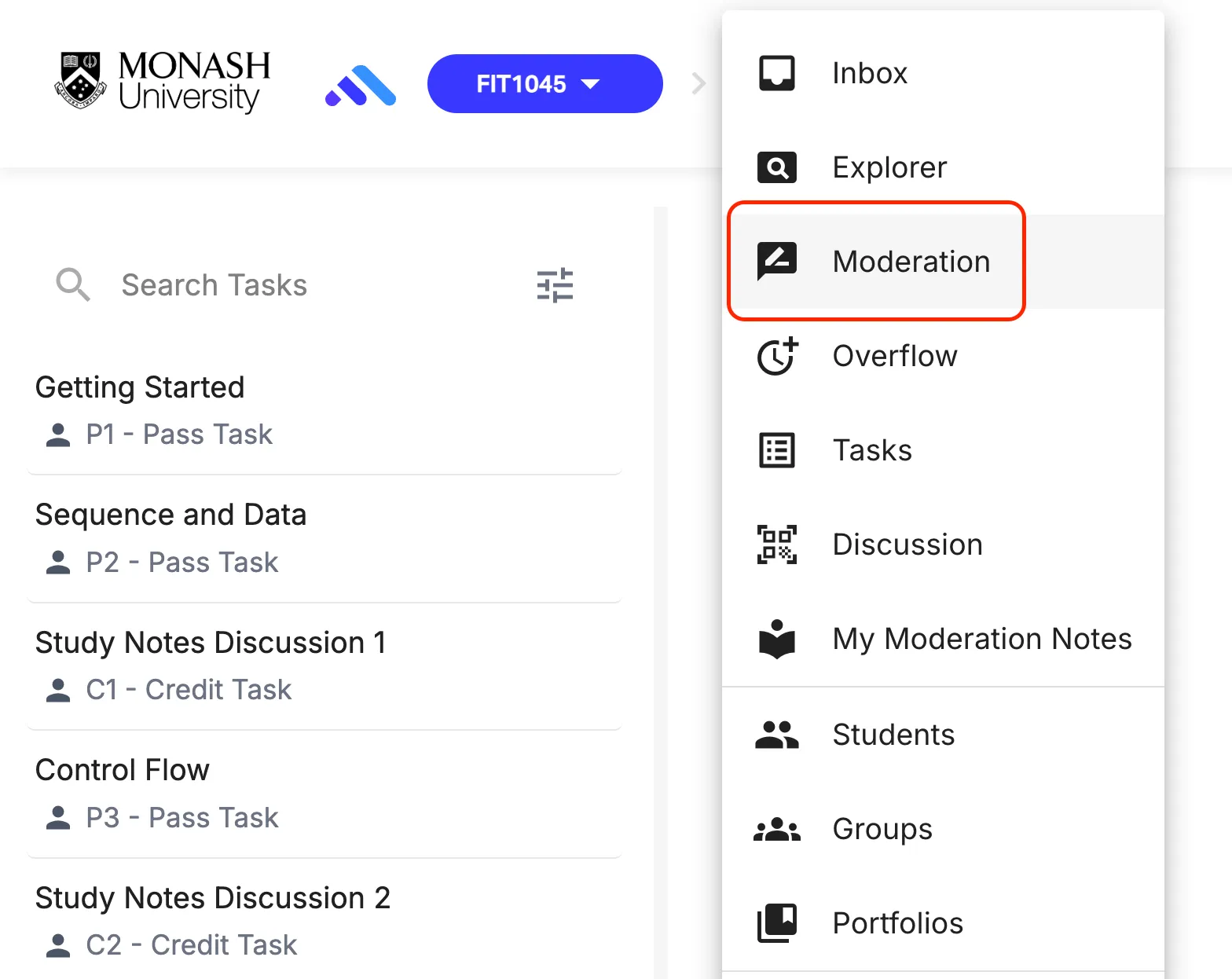
- Navigate to Moderation
- Select a task to review
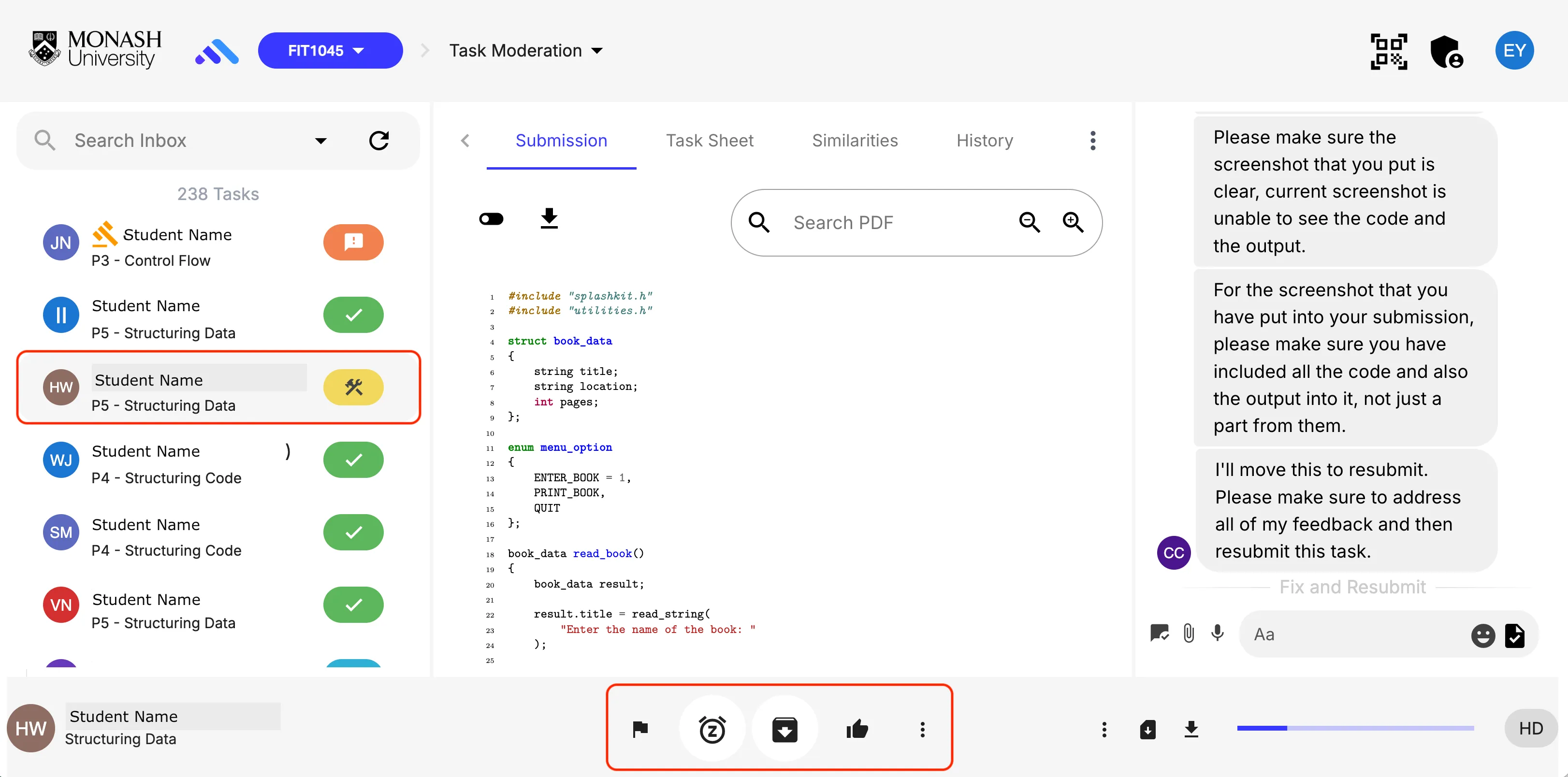
- You can leave Mod Notes for the TA, which sends direct coaching messages to the TA regarding a specific submission. This triggers an email to the TA and displays an un-dismissible notification icon in OnTrack until acknowledged.
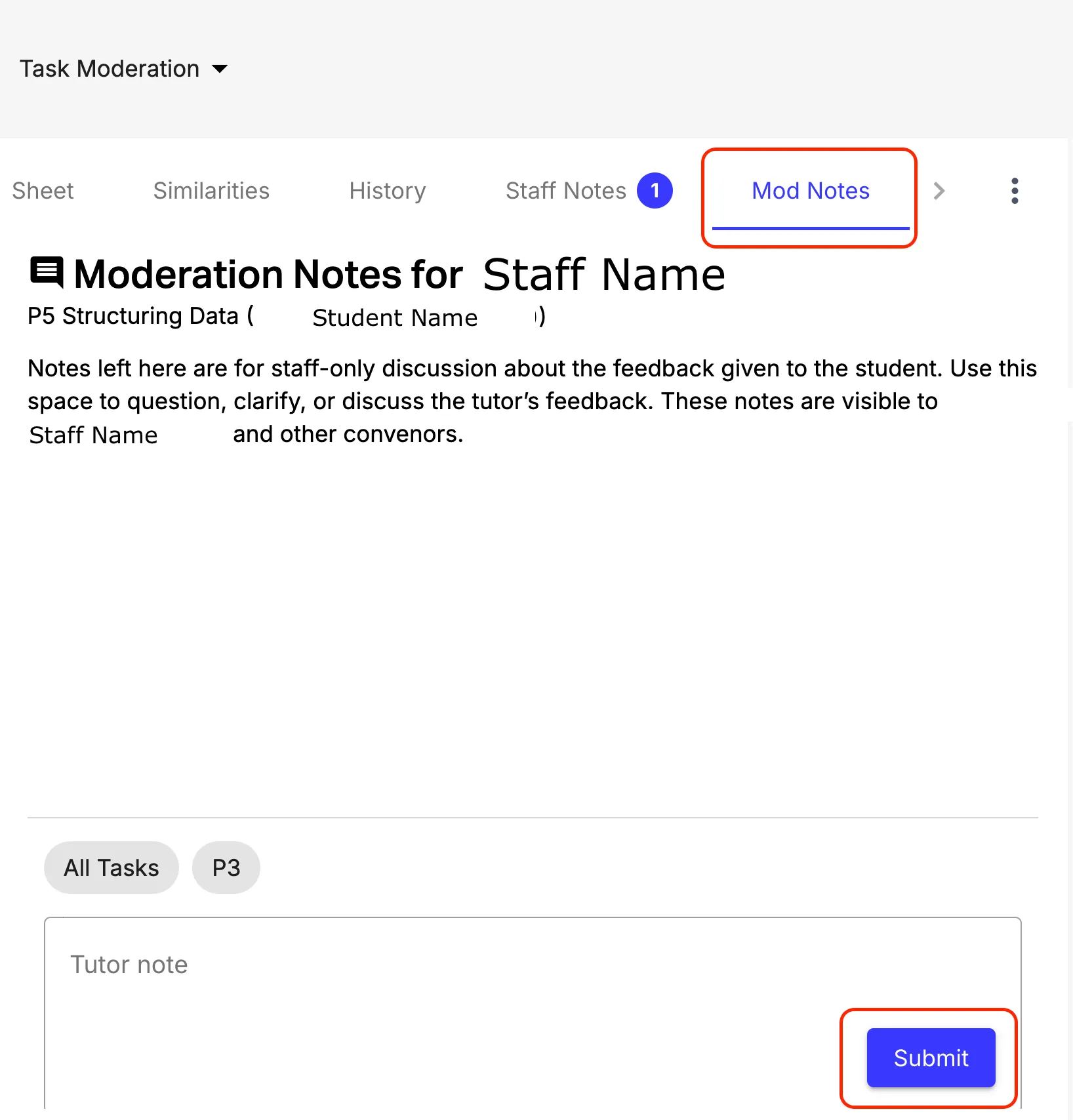
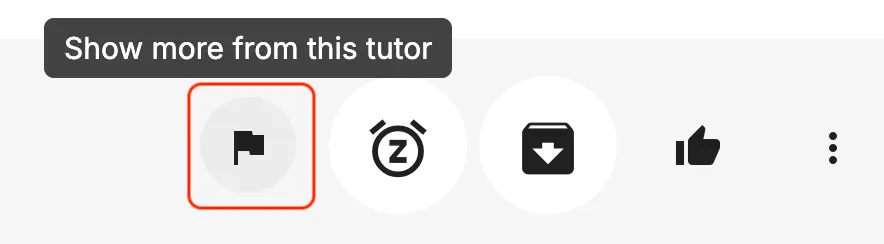
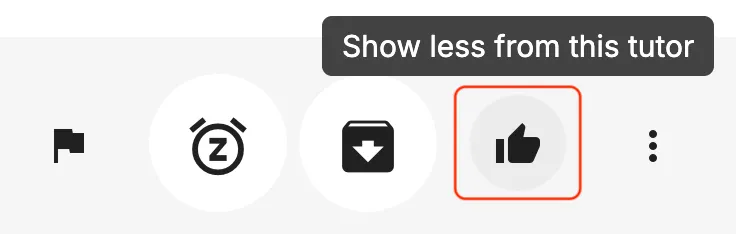
- You can also choose to see more from this TA if they need more guidance, or less if you are happy with their work.
Student Feedback Escalations
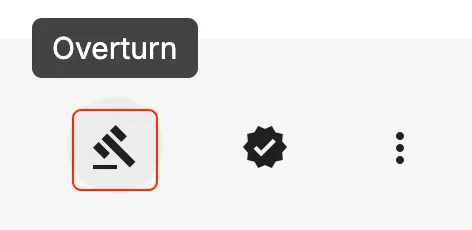
If a student disagrees with TA feedback, they can click Request Feedback Review (represented by a gavel icon). The submission routes directly to the assigned mentor/convener.
3-Point Escalation System: Students receive 3 dispute points per semester. If the convener agrees with the student, the feedback is revised and no points are deducted. If the convener agrees with the TA, the student loses 1 dispute point. Reaching 0 points prevents further formal review requests.
Step-by-step instructions
- If a task appears in your moderation queue with a gavel icon on it, it is a student dispute query. Select that task.
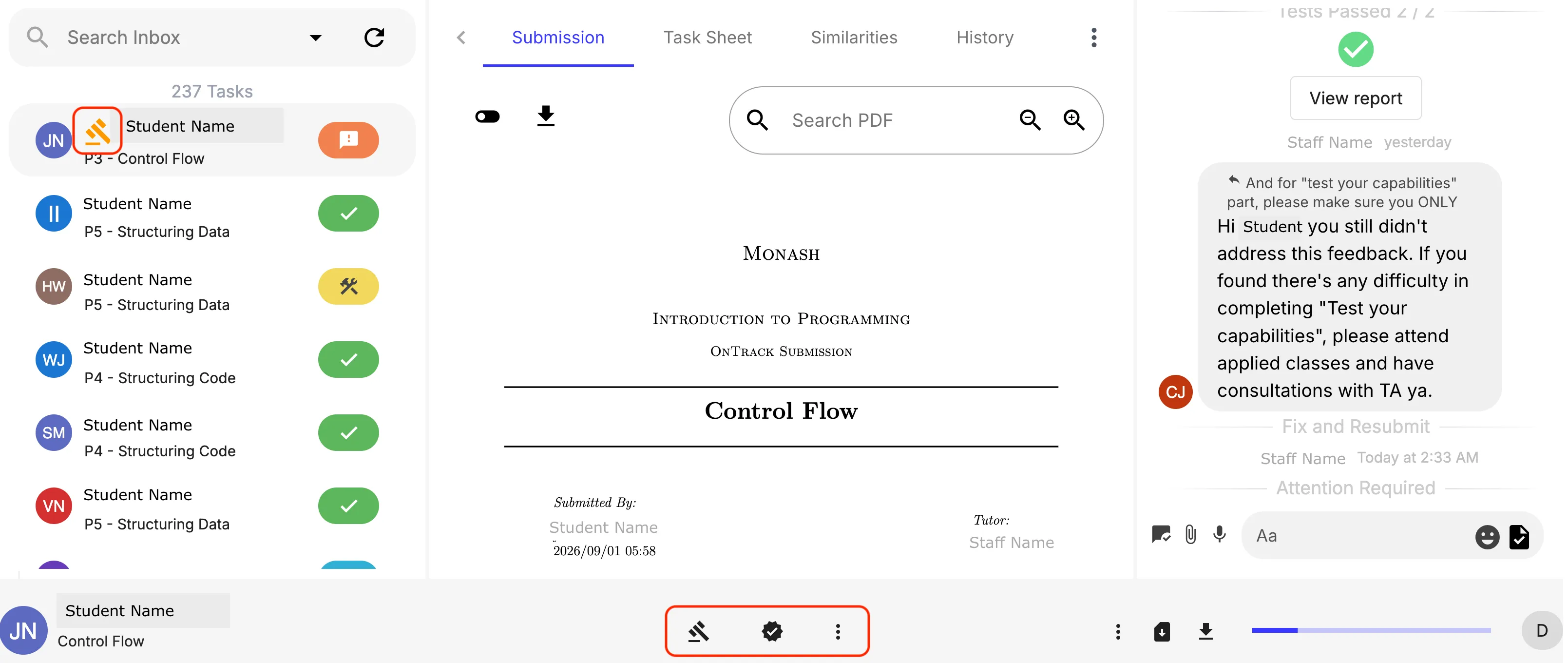
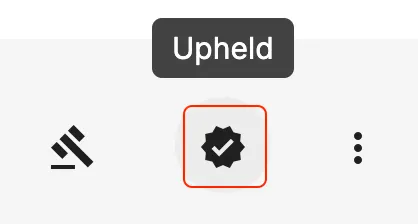
- Review the feedback. To agree with the TA click Upheld. To agree with the student, click Overturn.