Staff Management & Roles
Staff members must log into OnTrack at least once to automatically create their profile in the system before they can be assigned to a unit.
User Roles Overview
- Tutor (Default): Assigned to all staff upon first login. Allows staff to view all students and their submissions, provide feedback, update task statuses, view and grade portfolios, and be assigned to classes/students.
- Convener: All tutor permissions, plus full access to unit settings. Staff profiles must be upgraded by an Admin before they can be given this role in a unit.
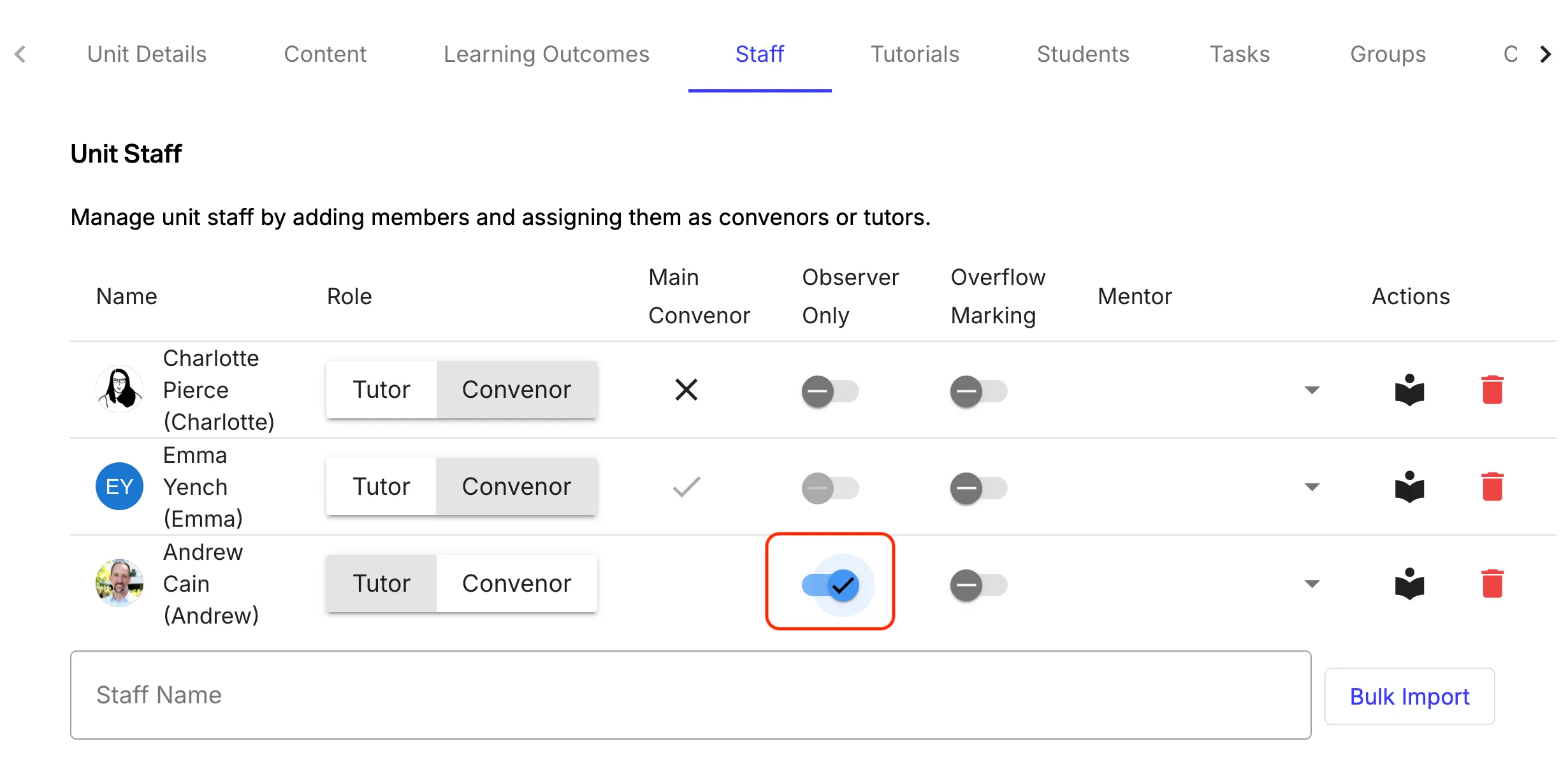
- Observer Toggle: Makes any role read-only (allows viewing settings and submissions without ability to edit).
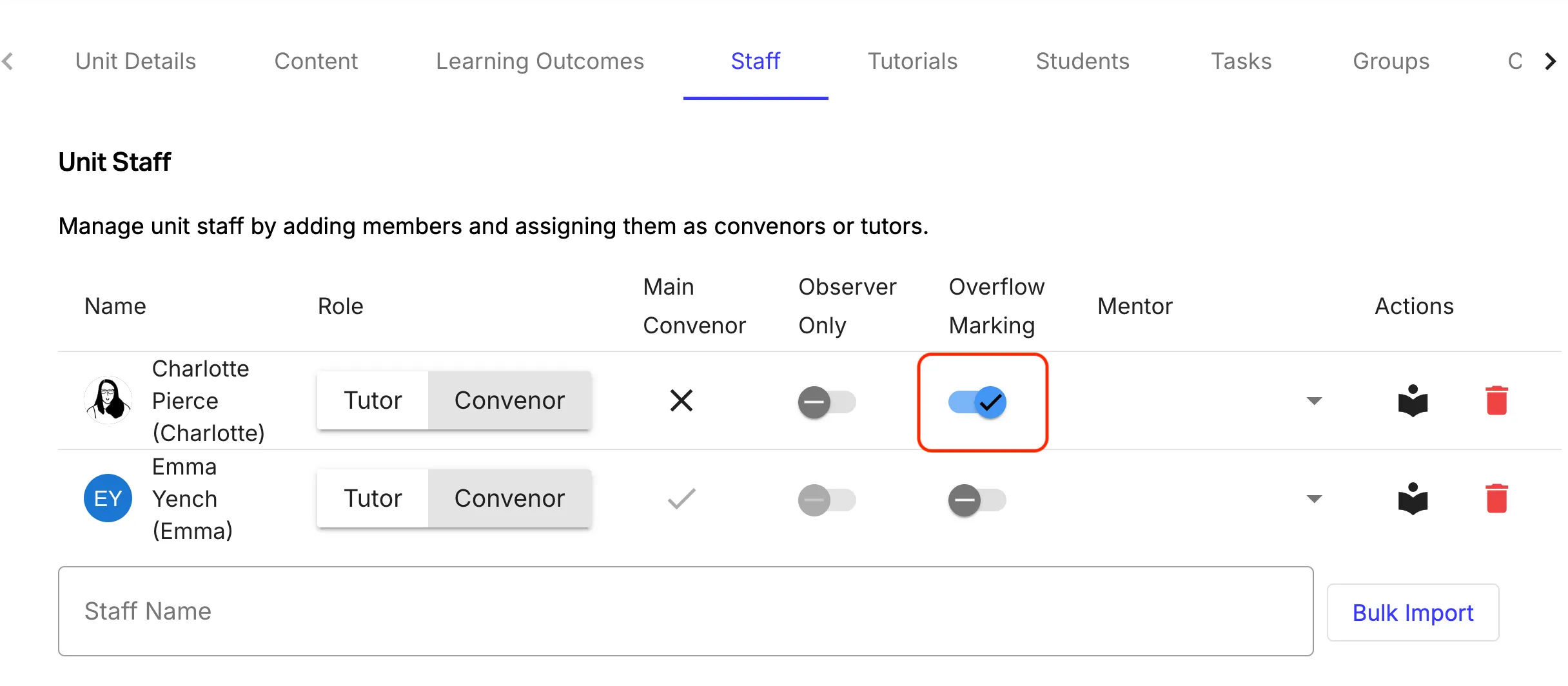
- Overflow Toggle: Enables staff to claim and give feedback on submissions waiting in the central overflow queue.
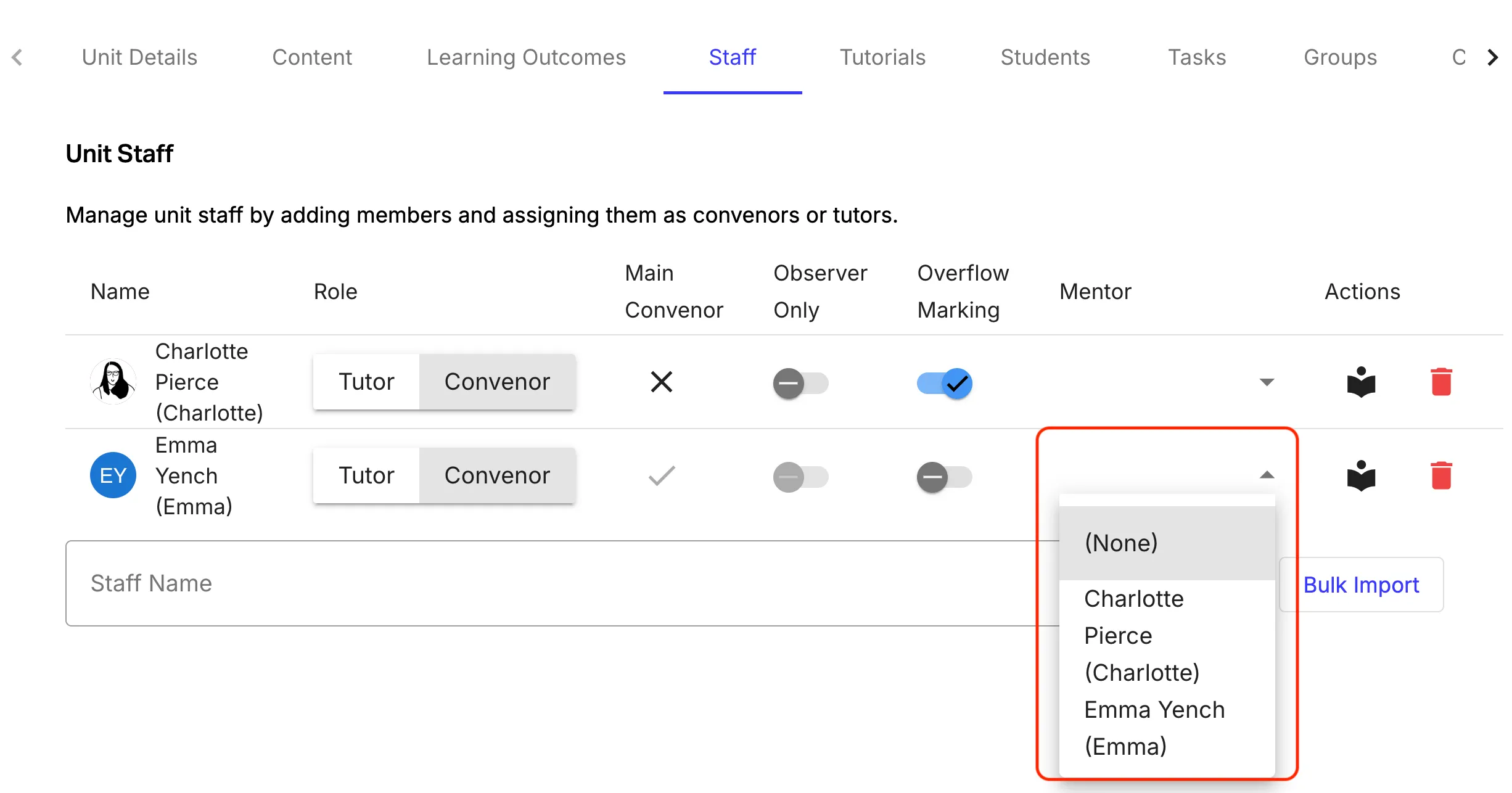
- Mentor Dropdown: Connects a senior staff member to a tutor for feedback moderation.
Step-by-step instructions
- Direct all new TAs and staff to log into OnTrack once before the semester starts.
- Navigate to Admin Panel > Staff.
- Search for the name of the staff member you want to add in the search bar at the bottom. Click their name to add them to the unit.
- Assign privileges:
- Toggle Overflow Marking ON for TAs who will assist with late feedback.
- Select a Mentor from the dropdown menu for junior TAs requiring feedback supervision.
- Toggle Observer ON if adding visitors, auditing staff, or observers.