Unit Setup
When your OnTrack unit shell is first provisioned for a semester, configure your default operational rules.
Step-by-step instructions
- Open your unit’s main dashboard in OnTrack.
- Navigate to Administration > Unit Settings.
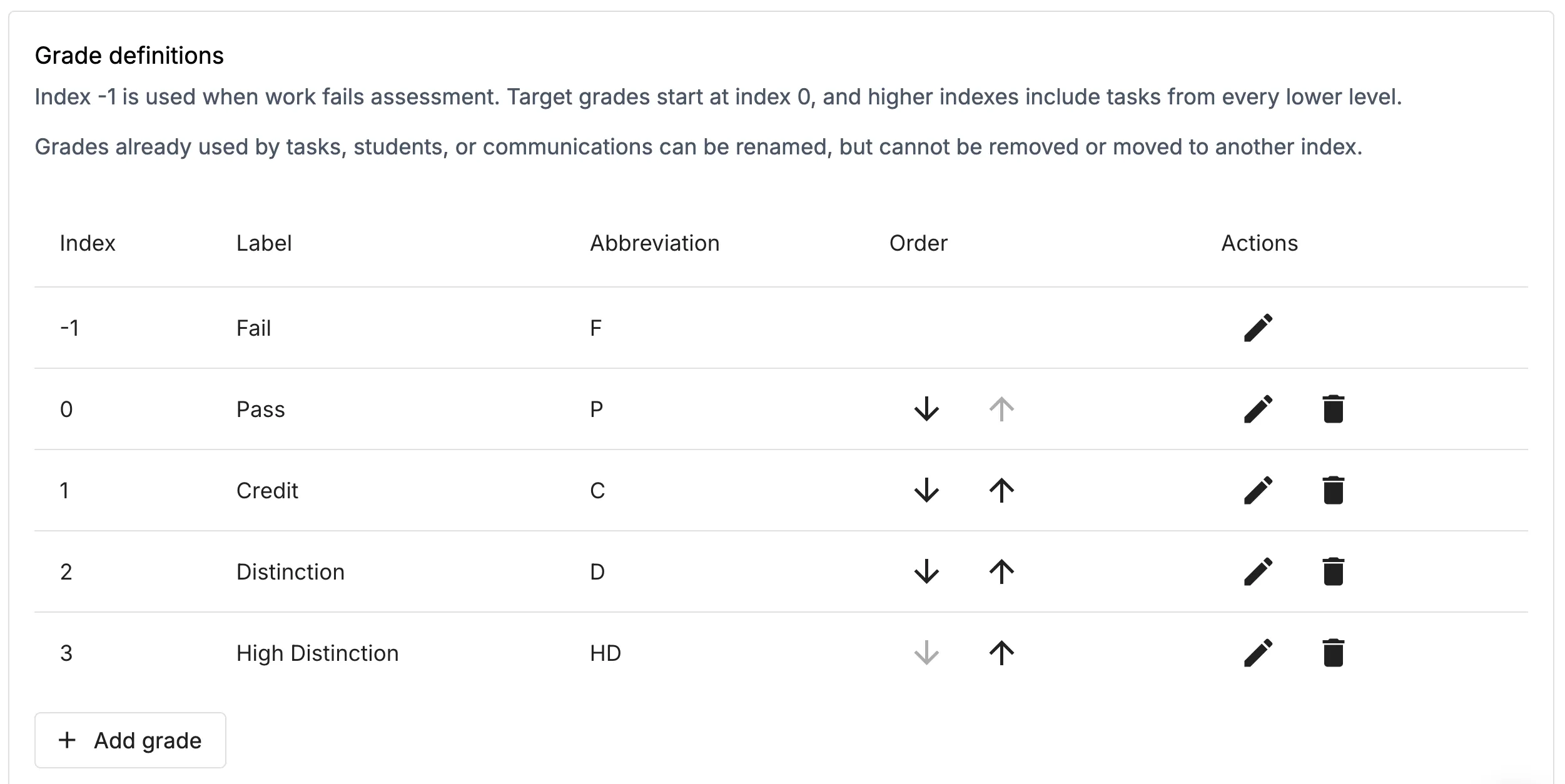
- Configure Portfolio Auto-Generation:
- Select your final required Pass task (e.g., Learning Summary Report) in the portfolio dropdown.
- Set the Auto-Generation Date. Students who have submitted this task will automatically have their final portfolio created on this date as a fail-safe.
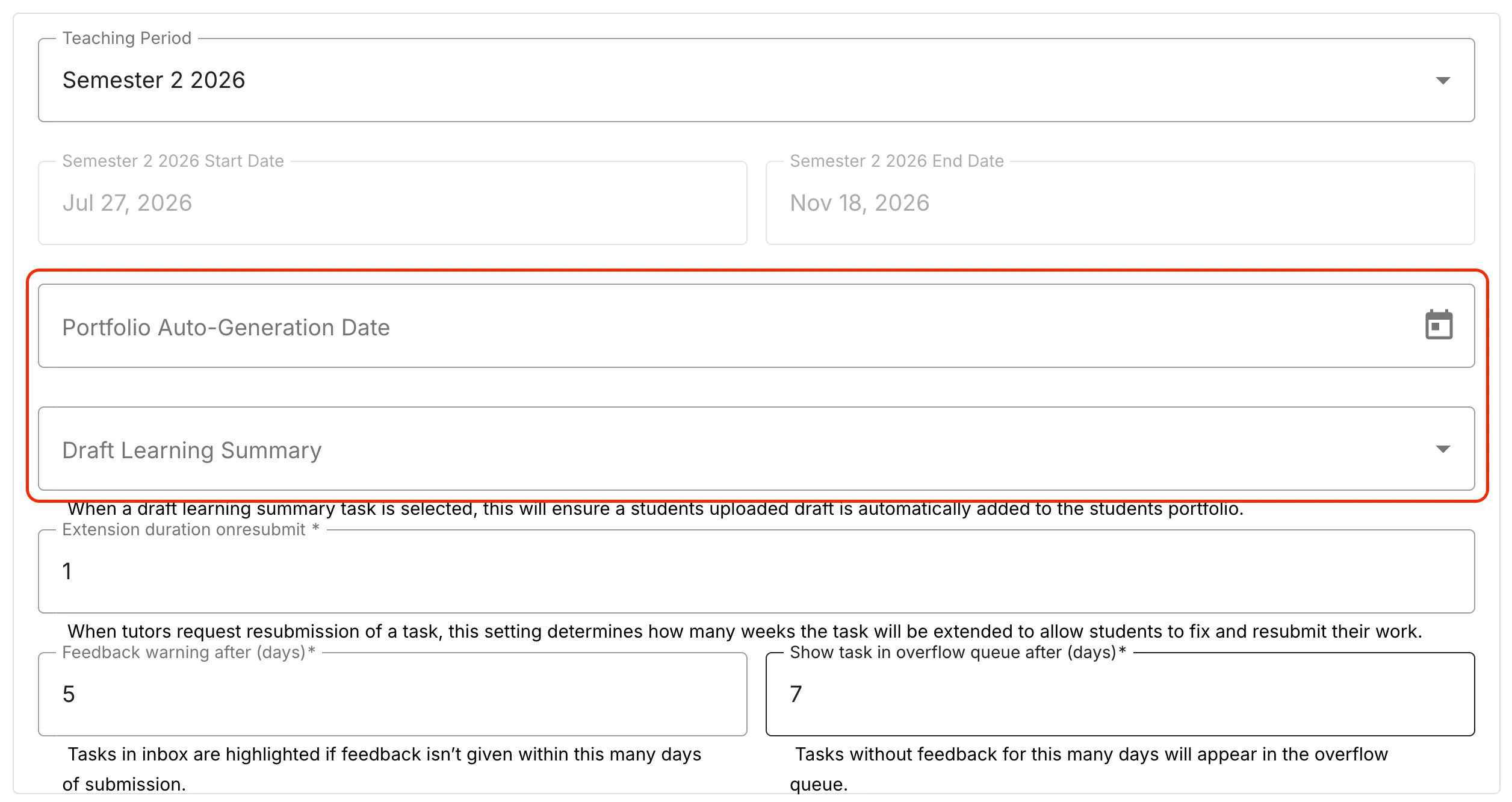
- Set Feedback Thresholds (Overflow Warnings): Yellow Warning Threshold (e.g., 4 days): Sets the number of days after submission before a task turns yellow in the assigned TA’s inbox to alert them feedback is nearly overdue. Red / Overflow Threshold (e.g., 5 days): Sets the threshold after which the task turns red and escalates to the shared Overflow Queue for other staff members to assist.
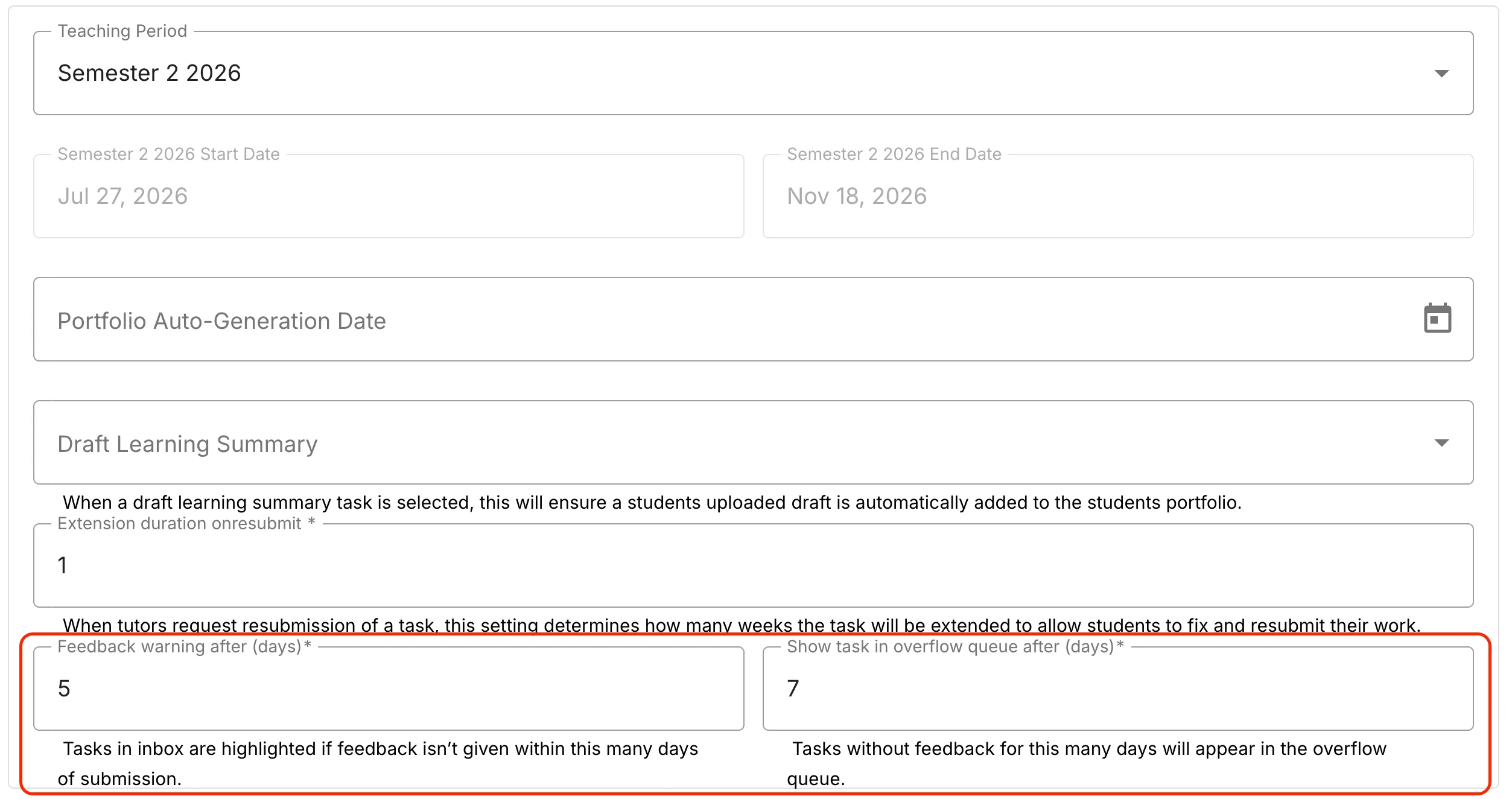
- Disable Tutorial Switching: Ensure the checkbox “Allow students to change tutorial” is unticked. Why: Keeping this ticked allows students to re-assign themselves between tutorial sections, disrupting attendance and TA assignment queues.
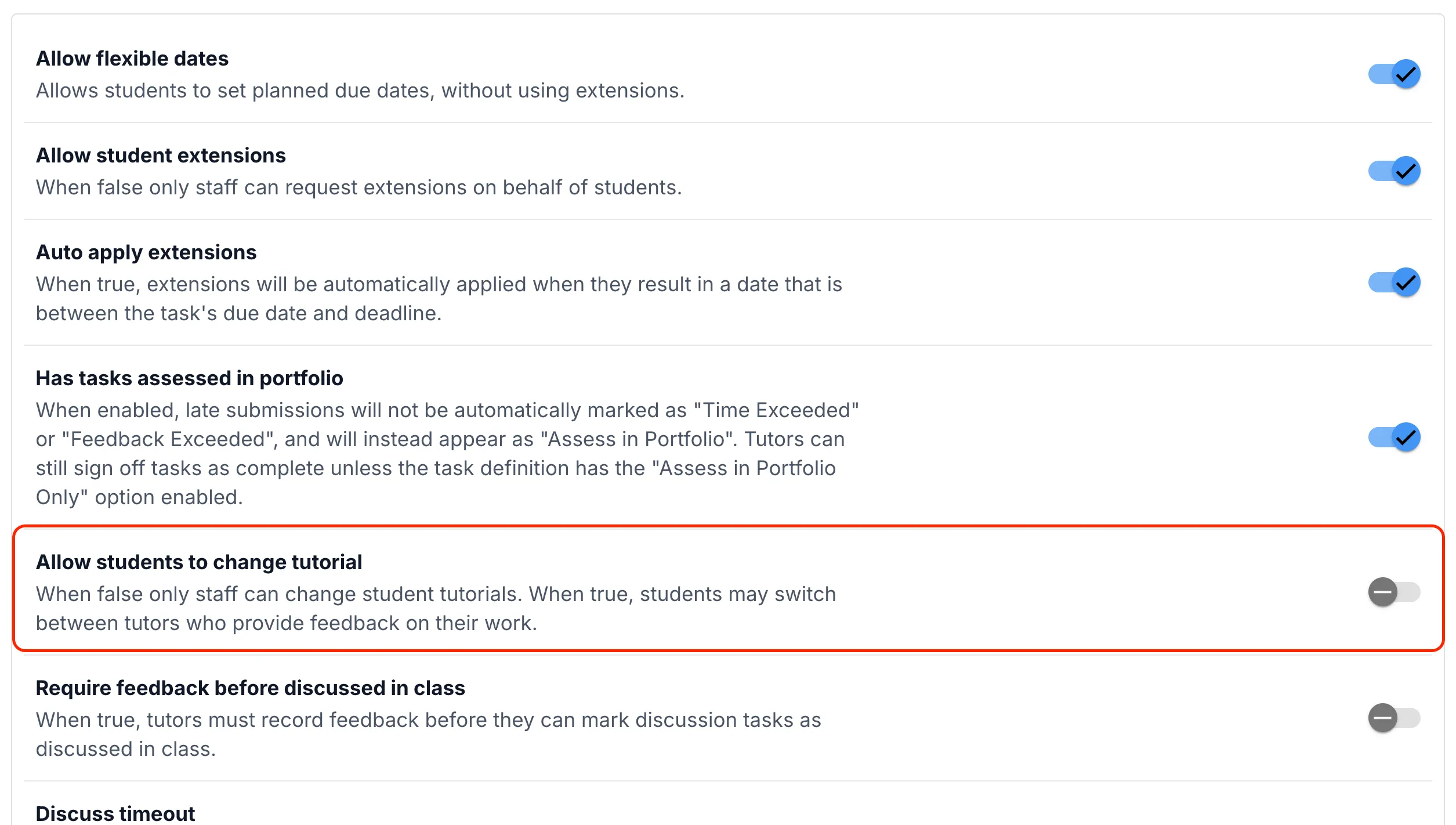
- (Optional) Customise Grade Descriptions: If your unit requires non-standard grade names (e.g., High Distinction Plus), modify or append the standard grade names in the grade definition list.