Assigning Students to TAs for Feedback
To assign students to specific TAs for feedback, you need to set up feedback streams.
Step-by-step instructions
- Ensure all students and staff are imported into OnTrack.
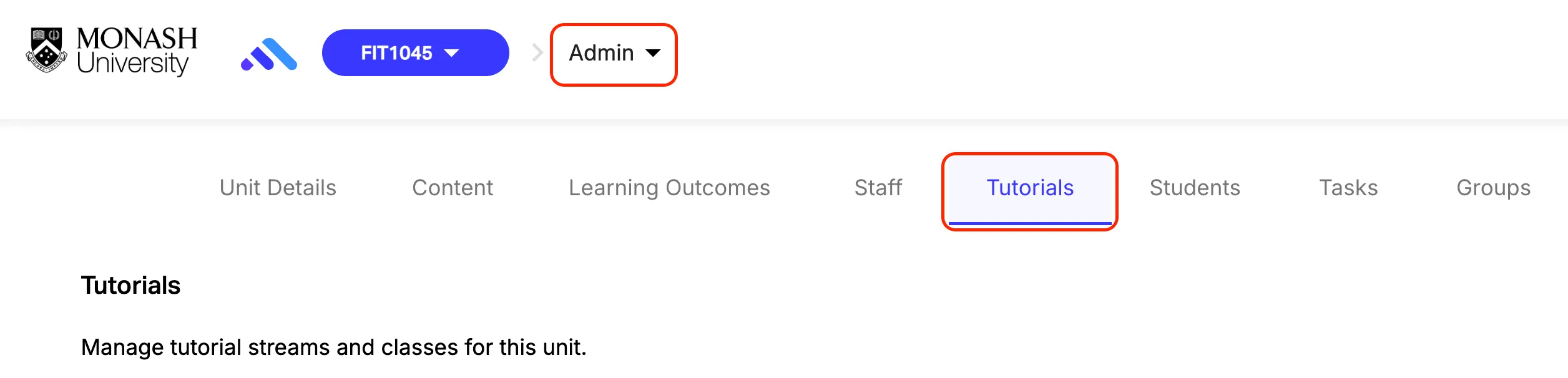
- Go to Admin Panel > Tutorials.
Option 1: One TA per class providing feedback in OnTrack
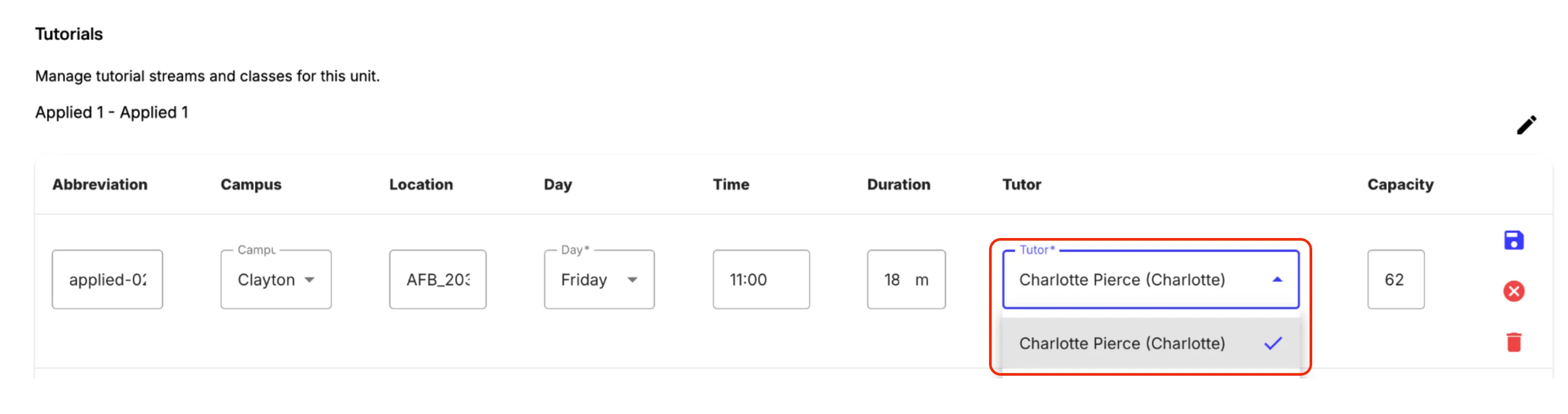
- Importing your students will automatically create classes under “Applied 1”. Use the “Tutor” dropdown for each class to select the appropriate staff member.
Option 2: Multiple TAs per class providing feedback in OnTrack
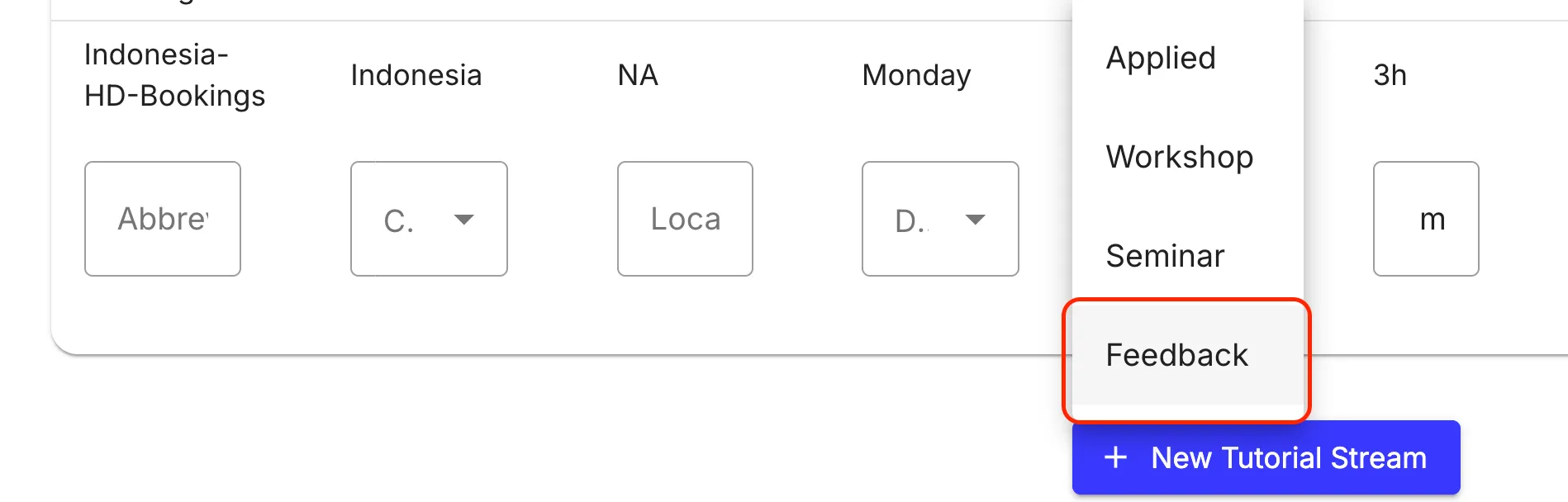
- Scroll to the bottom of the page and click New Tutorial Stream > Feedback. You can leave the default stream name and abbreviation of “Feedback 1”, or choose your own.
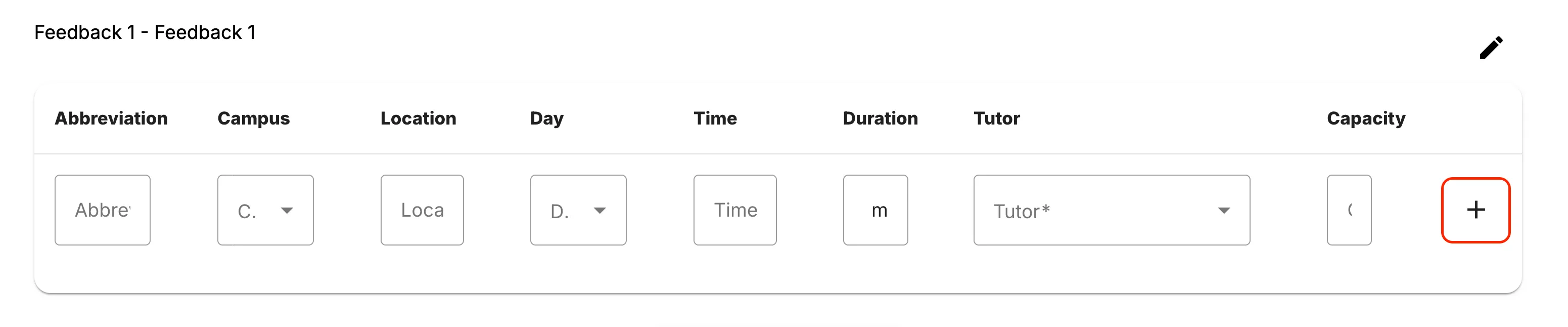
- Create as many feedback streams as you need. Typically this will be one stream per TA per class (e.g., 3 feedback streams for a class with 3 TAs). Each stream needs an abbreviation (e.g., “TAName-Class”), details of the associated class, and an assigned staff member. a. Once you have filled out a row, click the “+” button on the right-hand side to add a new blank row.
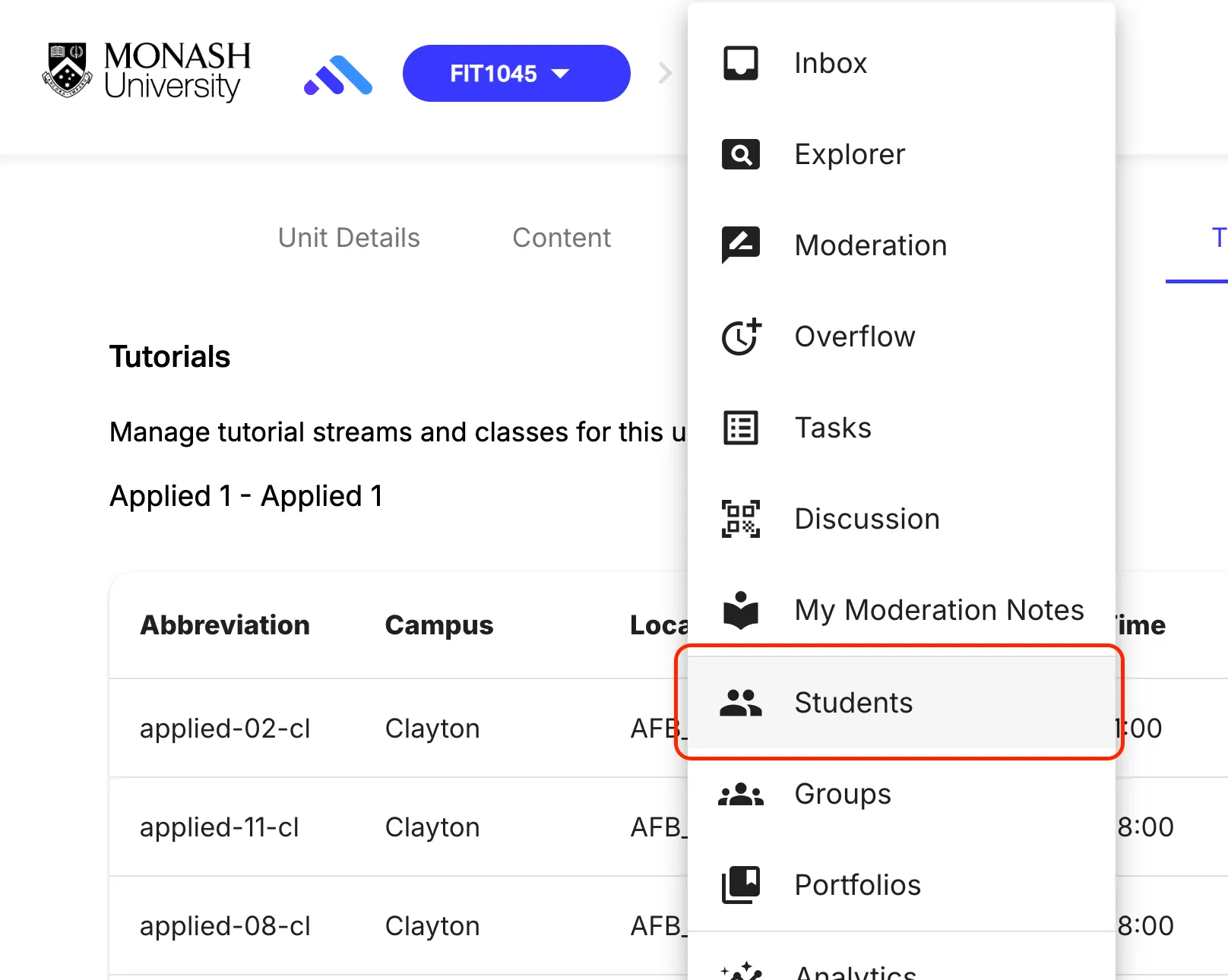
- Navigate to the Students tab of the Admin panel.
- Click Download.
- Open the downloaded CSV file in a spreadsheet editor.
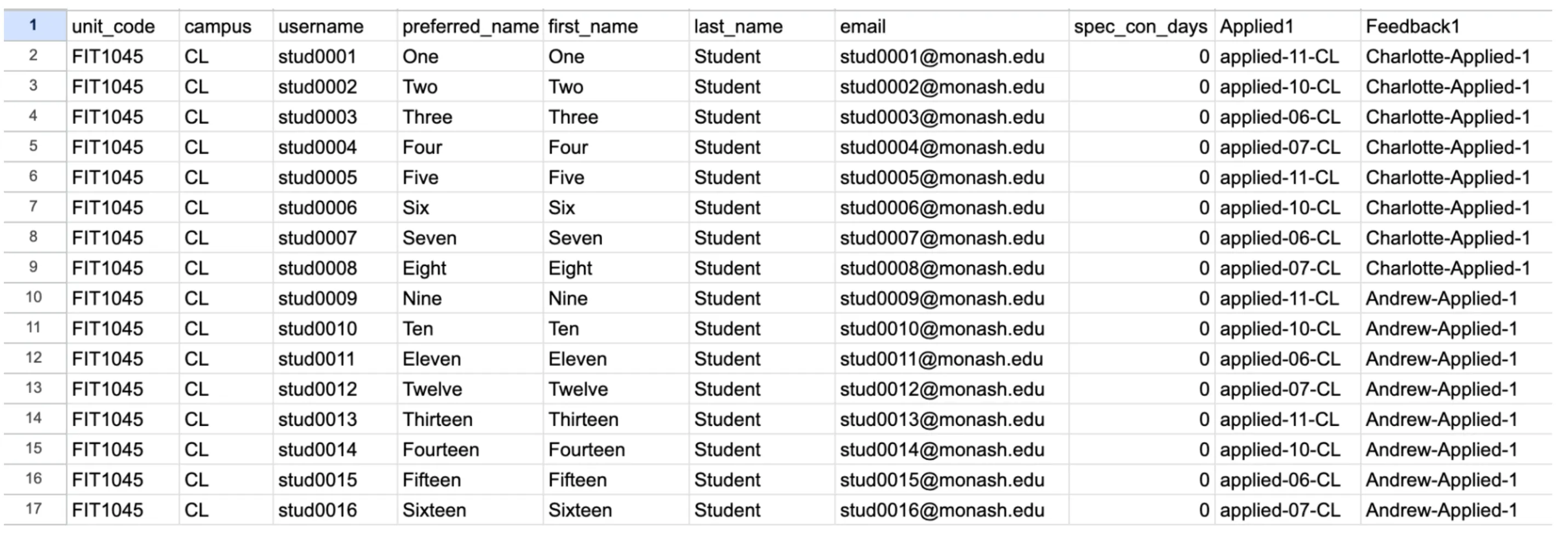
- You should see a column with the same name as your new feedback stream (“Feedback 1” by default). Fill out this column to allocate each student to a feedback stream, using the feedback stream Abbreviations you created in step 2.
- Save the CSV.
- In the Admin > Students page in OnTrack, click “Batch Enrol”. Select the CSV and click “Start Upload” to process allocations.
