Feedback Templates & Learning Outcomes
To speed up marking and maintain feedback quality, you can set up pre-written comments for each task.
Step-by-step instructions
- Open the task edit page and go to Task Learning Outcomes.
- Click Add Outcome
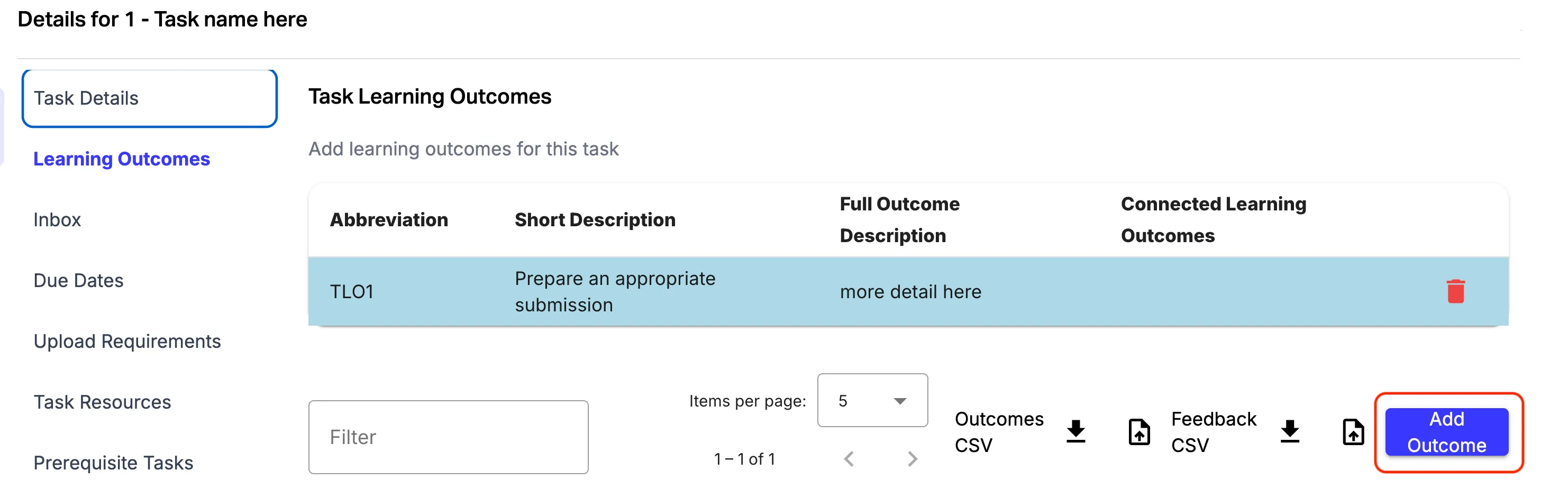
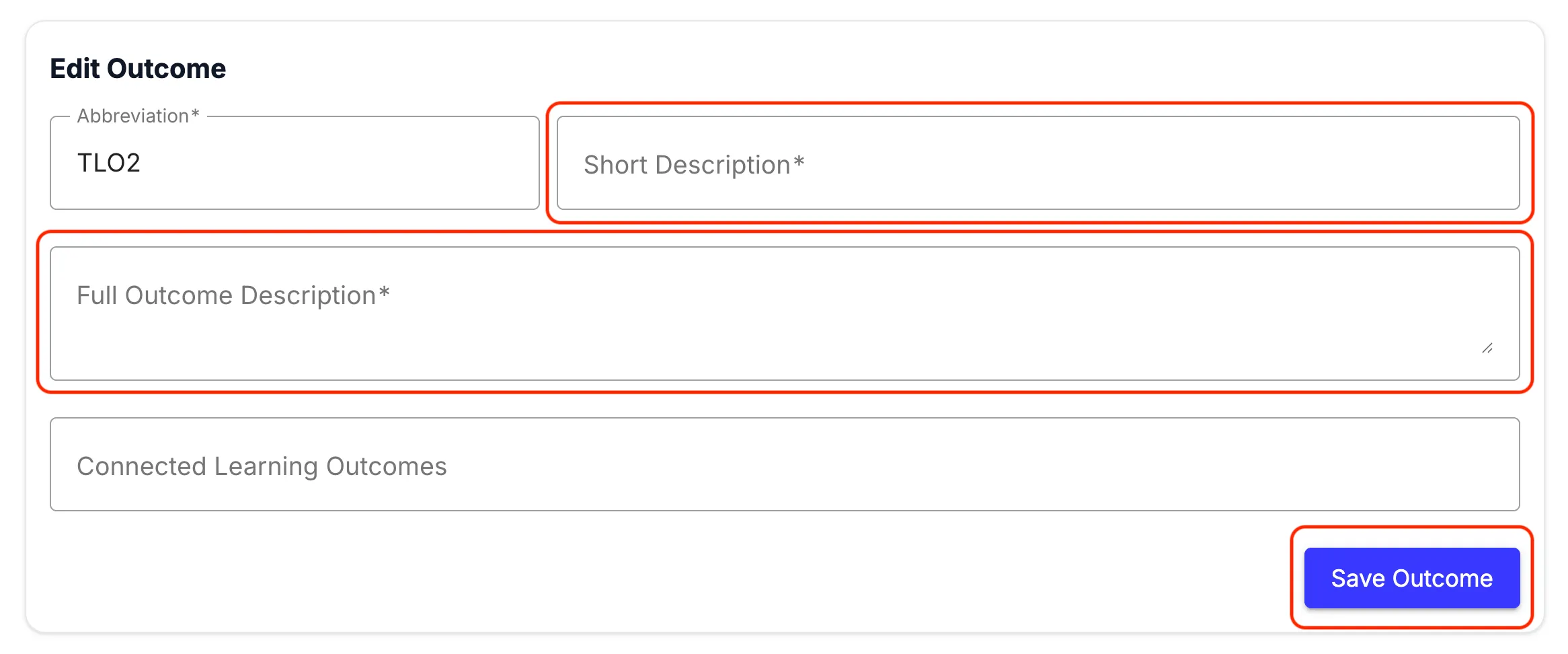
- Add a short description (e.g., “Prepare an appropriate submission”) and Full outcome description, and slick Save Outcome
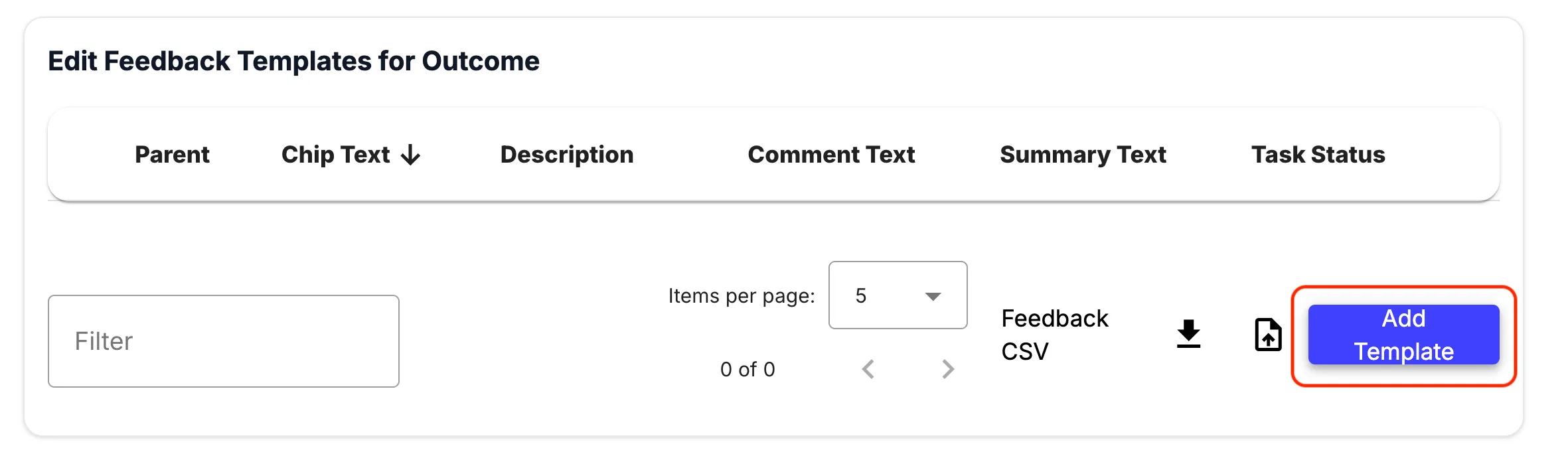
- In Edit Feedback Templates for Outcome click Add Template
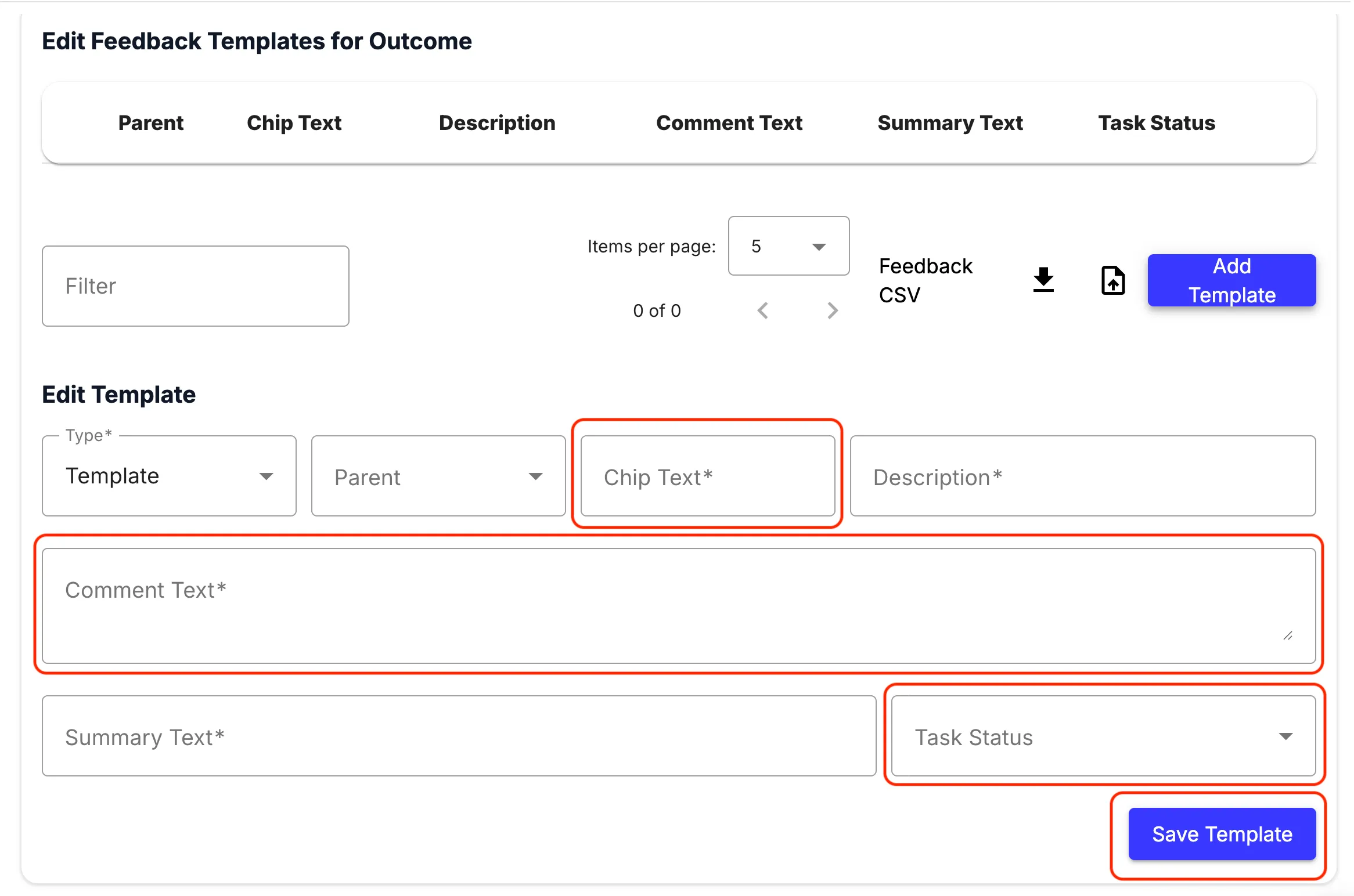
- Configure canned comments and click Save template
- Chip Text: Brief descriptor for staff (e.g., Incomplete Submission). This will become the label for the button staff can click on to insert the comment.
- Comment Text: The pre-written comment to insert.
- Summary Text: Text that will be used to summarise the feedback if the TA chooses to use the “Summarise feedback” button.
- Task Status: Pre-select a suggested task status if this comment is used (e.g., Fix and Resubmit, Complete, Redo).
- When marking, TAs can click these pre-configured boxes to instantly insert standardized feedback.